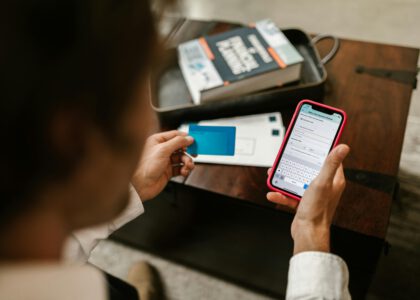
Moving to a new country means more than physical relocation, it means keeping all your devices connected, secure, and well‑supported in an entirely new technological ecosystem. You’ll face different internet providers, unfamiliar mobile networks, varying device compatibility standards, and tech support teams who may communicate differently than you’re used to. This comprehensive guide helps you navigate every step of setting up Wi‑Fi, getting devices working with local networks, contacting tech support effectively, and establishing safe online habits that protect your data and privacy in your new home.
With ready‑to‑paste abblino prompts, detailed scenario walkthroughs, and a structured 14‑day sprint, you’ll handle tech hurdles with calm, clarity, and confidence. Whether you’re troubleshooting a router at midnight, explaining a connectivity issue to a help desk, or securing your home network for the first time, you’ll have the language tools and technical understanding to succeed.
Breathe. Check cables. Reboot when needed. Then log in and surf with ease.
Table of Contents
ToggleTL;DR: The Tech Setup Abroad
Daily practice structure (15–25 minutes):
- 8–12 minutes: abblino role‑play sessions covering real scenarios (wifi shop consultation, device setup walkthrough, help desk interaction, router configuration, security setup)
- 3–5 minutes: Phrase review focusing on clear, concise expressions with proper stress patterns and natural pauses
- 3–8 minutes: Input practice → 60–90 second retells (explain setup steps, troubleshooting procedures, or create a short how-to guide)
Core communication moves: Describe the problem accurately, specify the exact device and model, confirm each step before proceeding, ask for clear next actions, verify completion and expected outcomes
Communication principles: Use polite requests that show respect for the support person’s time, provide concise descriptions that include relevant details without overwhelming, and confirm understanding step‑by‑step to reduce miscommunication and repeated explanations
Weekly tracking goals: Document networks successfully set up, devices connected and functioning, and practice at least one smoother 60–90 second tech support retell that demonstrates your growing confidence
The Core Tech Scenarios
When you move abroad, you’ll encounter these essential technology situations, often within your first few weeks:
Internet Service Setup (Home Wi‑Fi and Modem/Router)
Choosing an internet service provider, understanding contract terms, scheduling installation appointments, receiving and configuring equipment, testing connection speeds, and understanding what to do if service doesn’t meet expectations. You’ll need to discuss bandwidth requirements, upload vs. download speeds, contract lengths, installation fees, and monthly costs.
Mobile Data Plan and eSIM Setup
Selecting between prepaid and postpaid options, understanding data allowances and throttling policies, activating physical SIM cards or eSIM profiles, configuring APN settings if required, managing roaming options, and understanding how to top up credit or change plans as your needs evolve.
Device Pairing and Bluetooth/Wi‑Fi Setup
Connecting smartphones to wireless networks, pairing Bluetooth devices like headphones and speakers, adding printers to your network, syncing smart home devices, troubleshooting connection failures, and understanding compatibility issues between devices from different regions.
Home Network Troubleshooting (Slow Speeds and Outages)
Diagnosing connectivity problems, running speed tests, identifying whether issues stem from your router, your ISP, or your devices, understanding peak usage times, recognizing service outages vs. equipment failures, and knowing when to restart equipment vs. when to call support.
Router Configuration Basics (Security, SSID, and Password Management)
Accessing your router’s admin interface, changing default credentials, setting strong Wi‑Fi passwords, choosing WPA2 or WPA3 encryption, hiding or broadcasting your network name (SSID), setting up guest networks, and understanding basic firewall settings.
Tech Support Calls and Chats (Clarifying Issues and Escalation)
Clearly explaining technical problems, providing diagnostic information, following troubleshooting steps, knowing when to request escalation to specialized support, understanding service level agreements, documenting case numbers and representative names, and following up effectively.
Device Safety and Backups (Encryption, Cloud Backups, and Password Managers)
Enabling device encryption, setting up automated cloud backups, choosing and using password managers, enabling two-factor authentication across services, recognizing phishing attempts, protecting against malware, and establishing regular security check routines.
Practice recommendation: Pick 1–2 scenarios per session rather than trying to master everything at once. Depth beats breadth when building practical language skills.
Comprehensive Phrase Bank (Copy, Personalize, and Reuse)
Tag phrases by scenario (wifi, devices, router, troubleshooting, support) for easy reference. Read aloud with CAPS indicating stress and / marking natural pauses. Adapt with local provider names, specific device models, and your personal situation.
Internet Setup and Initial Consultation
Opening the conversation:
- “Hello, I’m [Name]. I’ve just moved to [address/neighborhood] and need to set up home internet. What are the available options for this area?”
- “I’m looking for reliable internet service, could you explain the difference between your fiber, cable, and DSL packages?”
- “What connection speeds do you recommend for someone who works from home and does video calls daily?”
Understanding packages and pricing:
- “Could you break down the total monthly cost, including all fees, taxes, and equipment rental charges?”
- “Is there a contract period required, or are month-to-month options available?”
- “What happens to the price after any introductory period ends?”
Installation and activation:
- “Could you explain the installation steps and give me the expected activation date?”
- “Will a technician need to come to my apartment, or can I set up the equipment myself?”
- “What should I do if the internet isn’t working after the scheduled activation time?”
Equipment questions:
- “Is the modem/router included, or do I need to purchase or rent it separately?”
- “Can I use my own router instead of the one provided by your company?”
- “What’s the Wi‑Fi range of the standard router, will it cover a [size] square meter apartment?”
Mobile Data and SIM Card Setup
Choosing a plan:
- “I’d like to get a local SIM or eSIM. Which plans do you recommend for a student/short‑term visitor/permanent resident?”
- “What’s included in the [amount]GB data plan, is there a fair use policy or speed throttling after a certain amount?”
- “Can I make international calls, and if so, what are the rates to [country]?”
Activation and setup:
- “How do I activate roaming if I travel to nearby countries, and what are the data limits or additional charges?”
- “What’s the process for activating an eSIM on my device, can you walk me through it?”
- “If I run out of data before the month ends, how do I top up my account?”
Technical requirements:
- “Is my phone compatible with your network frequencies, it’s a [brand/model] from [country]?”
- “Do I need to configure any APN settings manually, or will they be set automatically?”
- “How long does it typically take for the SIM card to activate after I insert it?”
Device Pairing and Connectivity
Bluetooth pairing:
- “I’m trying to pair my [device name] with the home Bluetooth speaker. Any tips if it doesn’t show up in the available devices list?”
- “The Bluetooth connection keeps dropping, what could cause this and how can I fix it?”
- “How do I remove old Bluetooth pairings to make room for new devices?”
Wi‑Fi network connections:
- “What’s the best way to connect this printer to the Wi‑Fi network, should I use WPS or manual setup?”
- “My laptop connects to the network but shows ‘no internet access’, what should I check first?”
- “How many devices can connect to my home network before performance suffers?”
Troubleshooting connections:
- “The device connected successfully but isn’t communicating with other devices on the network, is there a firewall or isolation setting I should check?”
- “Should I connect my [device] to the 2.4GHz or 5GHz network for better performance?”
Router Configuration and Security
Accessing admin settings:
- “How do I access my router’s admin page, what’s the default IP address and login credentials?”
- “I changed the admin password and forgot it, is there a way to recover it or do I need to factory reset?”
Changing security settings:
- “How do I change the Wi‑Fi password on my router model [specific model number]?”
- “What’s the recommended security setting to protect my home network, WPA2, WPA3, or something else?”
- “Should I hide my SSID (network name) from public view for added security?”
Guest networks and access control:
- “How do I set up a separate guest network so visitors don’t have access to my main network?”
- “Can I set time limits or speed limits for the guest network?”
- “Is there a way to block specific devices from connecting to my network?”
Troubleshooting and Diagnostics
Initial problem description:
- “My internet has been very slow since yesterday. Could we run a quick speed test and check if there’s a known outage in my area?”
- “The connection drops every few hours and I have to restart the router, what might be causing this pattern?”
- “I can connect to the network but certain websites don’t load, could this be a DNS issue?”
Providing diagnostic information:
- “I’ve already tried restarting the router and modem, the problem persists after that.”
- “The speed test shows [number] Mbps download and [number] Mbps upload, but I’m paying for [number] Mbps, is that normal?”
- “All devices in the house are affected, not just one, so I don’t think it’s a device-specific problem.”
Following troubleshooting steps:
- “Could you walk me through that step again, I want to make sure I do it correctly.”
- “I’m at the settings screen now, what should I look for or change next?”
- “That step didn’t resolve the issue, what should we try next?”
When basic troubleshooting fails:
- “The device isn’t recognizing the hotspot even after following all those steps. Any advanced troubleshooting we should try?”
- “None of the standard fixes have worked, could there be a hardware issue with the equipment?”
Tech Support and Escalation
Starting the support interaction:
- “Hello, I’m calling about internet service at [address]. I’ve been experiencing [specific problem] for [time period].”
- “I have account number [number] and I need help with [specific issue].”
- “Before we start troubleshooting, I want to mention I’ve already tried [steps you’ve taken].”
During the support call:
- “Could you repeat that step more slowly? I want to make sure I understand exactly what to do.”
- “Let me write down that setting, could you spell out the exact name or show me where to find it?”
- “That seems to have helped partially, but the issue isn’t completely resolved yet.”
Requesting escalation:
- “If this issue can’t be resolved today, could you escalate to a specialist and provide a timeline for when I can expect a callback?”
- “I’ve called about this problem three times now, is there a more advanced support team who can investigate further?”
- “This seems like it might require a technician visit, what’s the process for scheduling that?”
Documentation and follow-up:
- “Could you send a written summary of our chat with the next steps and contact details?”
- “Please give me a case or ticket number so I can reference this conversation if I need to call back.”
- “What’s the expected timeline for resolution, and how will you notify me when it’s fixed?”
When dealing with language barriers:
- “I’m still learning [language], could you speak a bit more slowly or use simpler terms?”
- “Is there an English-speaking support line I could call, or written instructions I could follow?”
- “Could you send me these instructions by email so I can read them carefully and follow along?”
Connectors and Professional Tone
Use these to sound more fluent and connect ideas smoothly:
- “However, I should mention that…” (introducing a complication)
- “Therefore, I think we should…” (suggesting a logical next step)
- “For instance, when I try to…” (giving a specific example)
- “As a result, the connection…” (explaining an outcome)
- “On the other hand, if I try…” (presenting an alternative)
- “In addition to that problem, I’ve also noticed…” (adding information)
- “Consequently, I’m wondering if…” (drawing a conclusion)
- “Nevertheless, I’d like to…” (persisting despite setbacks)
abblino Prompts (Tech‑Ready, Copy‑Paste)
These prompts help you practice real scenarios with immediate feedback. Paste them directly into abblino and adjust the complexity as needed:
Wi‑Fi and Internet Setup:
- “Wi‑Fi setup role‑play: I’ll explain my home address and preferred service level, ask for the installation date and what equipment will be provided, and confirm all costs including hidden fees. Correct major errors only; give 1 upgraded phrasing to sound more professional.”
- “Internet package comparison: Present me with 3 fictional internet packages. I’ll ask questions about each, compare prices and speeds, and make a decision. Correct major grammar errors and suggest 1 smoother way to ask about contract terms.”
Device and Mobile Setup:
- “Device pairing walkthrough: Walk me through pairing a Bluetooth device step by step. I’ll confirm each step and ask clarifying questions. Provide 2 variants for the most common phrases and a tone note (friendly/formal) for each.”
- “eSIM activation: I’ll pretend to call my mobile provider to activate an eSIM. Guide me through the process and point out if my explanations are unclear. Highlight key phrases I should save for future reference.”
- “SIM card troubleshooting: My SIM isn’t working after I inserted it. I’ll describe the problem and ask for help. Correct only major errors and show me how to sound more confident when describing technical issues.”
Router and Security:
- “Router security setup: Explain changing the Wi‑Fi password and enabling WPA3 encryption on the router admin page. I’ll ask questions about each step. Highlight the 3 most important steps and give me upgraded phrasing for 1 security question.”
- “Guest network configuration: I want to set up a guest network for visitors. Walk me through this and I’ll confirm each step. Show me 2 ways to ask about security differences between main and guest networks.”
- “Router troubleshooting scenario: My router keeps disconnecting. I’ll describe symptoms and you’ll suggest diagnostic steps. I’ll follow them and report results. Give me 1 phrase upgrade for describing intermittent connection problems.”
Troubleshooting:
- “Speed test description: I’ll describe running a speed test and explain the results to a support person. Provide feedback on clarity and suggest 1 more technical-sounding alternative.”
- “Connection problem diagnosis: I’ll describe a connectivity symptom, run a quick diagnostic test, and propose 1 fix plus 1 escalation path if that doesn’t work. Correct major errors and show me how to transition smoothly between attempted fixes.”
- “Multi-device network issue: Several devices can’t connect to my network. I’ll explain the pattern and ask for help identifying the cause. Point out any unclear descriptions and give me 1 better way to describe the pattern.”
Support Interactions:
- “Support escalation practice: The first-level support couldn’t help. I’ll request a supervisor politely but firmly. Capture the expected timeline and what the follow‑up will include. Give me 1 tone adjustment to sound appropriately assertive.”
- “Help desk documentation: After a support call, I’ll summarize the issue, steps taken, and next actions in 3‑4 sentences. Review for clarity and completeness.”
- “Follow-up conversation: I’m calling back about a problem that wasn’t resolved last week. I’ll reference my previous case and ask for status. Show me how to sound patient but persistent.”
Creating Reference Materials:
- “One‑page tech cheat sheet: Turn my bullet points about [specific setup] into a concise 5‑sentence instruction guide I can reference next time.”
- “Emergency contact card: Help me create a wallet-sized card with essential tech support numbers, account numbers, and key phrases in both English and [local language].”
- “Weekly tech review: I’ll describe what I accomplished this week (networks set up, devices connected, problems solved). Help me identify patterns and what to practice next.”
Set corrections to “major errors only” to keep momentum and avoid getting bogged down in minor details during practice sessions.
The 14‑Day Tech Sprint (15–25 Minutes Daily)
This structured sprint takes you from complete beginner to confident tech communicator in two weeks. Each day builds on previous skills while introducing new scenarios.
Days 1–2: Wi‑Fi and Home Network Foundation
Goals: Successfully role‑play installing internet service, understand contract terms and equipment options, save 8–10 essential phrases for future reference
Activities:
- Research actual internet providers in your new city (visit their websites or call)
- Practice explaining your address clearly (building number, floor, apartment number in the local format)
- Role‑play with abblino: “I just moved here and need internet, what packages do you offer?”
- Create a comparison chart of at least 3 real providers with prices and speeds
- Practice a quick 2‑minute walkthrough explaining internet options to a friend or family member
Language focus: Asking about installation (“When can a technician come?”), understanding equipment (“Is the router included?”), confirming costs (“What’s the total monthly price including all fees?”)
Tech outcome: Know exactly which provider you’ll choose and why, have a list of questions ready for the actual signup call
Days 3–4: Mobile Data Options and SIM Setup
Goals: Compare local mobile plans, understand prepaid vs. postpaid differences, practice a complete inquiry and selection script
Activities:
- Visit mobile provider websites or retail stores (even just window shopping builds familiarity)
- Practice describing your usage: “I need about [X]GB for streaming and video calls”
- Role‑play choosing between 3 fictional plans, asking about international calls and data rollover
- If you have your new SIM, practice the activation conversation (or simulate it with abblino)
- Learn the local emergency numbers and how to dial them from your phone
Language focus: Comparing options (“What’s the difference between these two plans?”), activation questions (“How long until it’s active?”), troubleshooting (“It’s been 2 hours and still no service”)
Tech outcome: Active mobile connection or clear plan for activation, confidence explaining your phone’s compatibility
Days 5–6: Device Pairing and Network Connectivity
Goals: Successfully pair at least one Bluetooth device and one Wi‑Fi device, document 2‑3 troubleshooting steps that actually work
Activities:
- Connect your phone to a Bluetooth speaker or headphones (unpair first if already connected, to practice fresh)
- Add a printer or smart device to your Wi‑Fi network
- Practice explaining pairing problems: “It’s searching but not finding the device”
- Create a simple troubleshooting flowchart: “If device doesn’t appear → try X → if still not working → try Y”
- Role‑play asking for help with a pairing problem that has 3 different possible causes
Language focus: Technical descriptions (“The blue light is flashing but it’s not showing up”), following multi-step instructions, confirming success (“It’s connected now and working properly”)
Tech outcome: At least 2 devices successfully connected, personal troubleshooting notes for common pairing problems
Day 7: Router Basics and Admin Access
Goals: Access your router’s admin page, change the default password, understand basic security settings
Activities:
- Find your router’s IP address (usually printed on the device or in documentation)
- Log into the admin interface and change the default password to something strong
- Practice explaining: “I want to change my Wi‑Fi password for security”
- Enable WPA2 or WPA3 encryption if not already enabled
- Set up a guest network if your router supports it (practice explaining the difference to a visitor)
Language focus: Security vocabulary (encryption, password strength, access control), giving clear instructions (“Click on the wireless settings tab, then look for security options”)
Tech outcome: Router secured with strong password, comfort navigating admin interface, one security improvement implemented
Days 8–9: Troubleshooting Clinic and Diagnostic Skills
Goals: Run diagnostic tests, explain symptoms clearly, understand when to escalate problems
Activities:
- Run actual speed tests on your connection using multiple tools (speedtest.net, fast.com, your provider’s tool)
- Practice describing different problem types: “The internet is slow” vs. “The connection keeps dropping” vs. “I can connect but nothing loads”
- Simulate a slow connection scenario with abblino and practice troubleshooting steps
- Learn to check for service outages on your provider’s website or app
- Create a decision tree: “When should I restart equipment vs. when should I call support?”
Language focus: Precise problem descriptions, explaining what you’ve already tried, understanding technical responses (“Your ping is high” or “There’s packet loss”)
Tech outcome: Confident running diagnostics independently, clear criteria for when to call support, documentation of one successful troubleshooting experience
Day 10: Support Call Practice and Escalation
Goals: Conduct a complete simulated support call, practice requesting escalation professionally, document timeline and next steps
Activities:
- Full role‑play with abblino: “I’ve been having problems for 3 days and basic troubleshooting hasn’t helped”
- Practice staying calm and professional even when frustrated
- Learn to ask for specific information: case numbers, callback timelines, technician visit windows
- Practice the escalation phrase: “I appreciate your help, but this issue needs specialized attention, could you transfer me to advanced support?”
- Document a mock support call with all relevant details (date, time, representative name, steps taken, outcome)
Language focus: Professional persistence (“I understand, but I still need this resolved”), documentation language (“Could you confirm the case number?”), follow-up requests (“When should I expect to hear back?”)
Tech outcome: Script for future support calls, confidence managing difficult support situations, understanding of escalation processes
Days 11–12: Backups, Security, and Password Management
Goals: Set up at least one automated backup system, install and configure a password manager, enable 2FA on critical accounts
Activities:
- Choose and set up a cloud backup service (Google Drive, iCloud, Dropbox, etc.)
- Practice explaining backup importance: “I want to protect my data in case my device is lost or damaged”
- Install a password manager (Bitwarden, 1Password, LastPass) and migrate 5 critical passwords
- Enable two-factor authentication on email, banking, and social media accounts
- Create a short (60‑second) informational talk about why security matters for expats
Language focus: Security vocabulary (encryption, two-factor authentication, backup frequency), explaining privacy concerns, asking about data protection policies
Tech outcome: Automated backups running, password manager active with key passwords stored, 2FA enabled on important accounts, written security checklist for future reference
Day 13: Real‑World Help Desk Mock Session
Goals: Combine all skills in a realistic 10‑12 minute support session that switches between multiple tasks
Activities:
- Full simulation: start with a connection problem, escalate to device pairing issue, then ask about upgrading your service
- Practice switching between problem modes without getting flustered
- Handle a “please hold” situation and pick up where you left off
- Deal with a simulated language barrier where you need to repeat or rephrase
- Record yourself (audio only) and listen back for areas to improve
Language focus: Transitions between topics, maintaining professional tone under pressure, clarity when repeating information, patience with communication barriers
Tech outcome: Confidence handling complex, multi-part interactions, awareness of personal communication patterns, identified improvement areas
Day 14: Review, Consolidate, and Create Reference Materials
Goals: Create a comprehensive 1‑page tech setup cheat sheet, identify and star your 20 most useful phrases, plan ongoing practice
Activities:
- Review all notes from Days 1‑13 and extract key learnings
- Create a one-page reference guide with: essential phrases, provider contact info, account numbers, common troubleshooting steps
- Star your top 20 phrases across all scenarios
- Plan your next learning goal: advanced router features? Smart home setup? Network security deep dive?
- Do one final 90‑second tech support retell on a topic of your choice, comparing it to your Day 1 baseline
Language focus: Consolidation of best phrases, identification of remaining weak areas, setting realistic ongoing practice goals
Tech outcome: Usable reference materials, clear progress documentation, actionable plan for continued improvement
Sprint targets by Day 14:
- 25–35 phrases saved and practiced until automatic
- At least 2 complete scenarios (e.g., internet setup + troubleshooting) performed without hints or scripts
- One noticeably smoother 60–90 second tech support retell that demonstrates confidence and clarity
- All essential accounts and devices set up and secured
Micro‑Drills (3–5 Minutes, High Impact)
These ultra-short practices fit into coffee breaks, commutes, or waiting time. Do one whenever you have a spare moment.
Speed Test Briefing
Give a crisp 20‑second tech status update including 2 key measurements: “I just ran a speed test, I’m getting 45 Mbps download and 12 Mbps upload, which is below the 100 Mbps I’m paying for. The router uptime shows 3 days without issues.” Practice until it sounds natural and confident.
Router Password Recall
Recite a sample strong password aloud (use a fake one, not your real password) and explain why it’s strong: “The password is Capital‑F‑lower‑r‑exclamation‑point‑2‑8‑lower‑q‑ampersand‑hash, it’s strong because it mixes uppercase, lowercase, numbers, and symbols, and it’s 9 characters long with no dictionary words.”
Security Cueing
Practice warning someone about a phishing attempt in a friendly, non‑alarmist tone: “Hey, just so you know, I got an email claiming to be from the bank, but the sender address looks suspicious and they’re asking for my password, I’m going to call the bank directly to check if it’s real. You might want to check if you got something similar.”
Help Desk Quick Recap
Immediately after any support call (real or simulated), write a 2‑sentence recap: “Issue: Wi‑Fi drops every evening around 8 PM. Next steps: Support will monitor the line for 48 hours and call back Friday with results.”
Offline Backup Drill
Explain your backup plan in 60 seconds without looking at notes: “I back up my phone photos to Google Photos daily over Wi‑Fi. My laptop backs up important documents to an external drive every Sunday, and I keep that drive in a different location. Critical passwords are in a password manager that syncs across devices.”
Device Compatibility Check
Practice explaining your device’s specifications: “I have a Samsung Galaxy S23 from the US, it supports 5G on bands N1, N3, N5, N7, N8, N20, N28, N38, N40, N41, N66, N77, N78, will it work with your network here in [country]?”
Problem Escalation Ladder
Quickly describe the escalation path for a persistent problem: “First I restart the router and test. If that doesn’t work, I call basic support and try their troubleshooting. If it’s still broken after 24 hours, I request escalation to technical specialists or schedule a technician visit.”
Safety, Privacy, and Digital Literacy for Expats
Living abroad increases certain digital risks. Your unfamiliarity with local scams, language barriers in identifying suspicious messages, and the need to set up new accounts make you a potential target. Here’s how to protect yourself:
Password Security and Authentication
Use strong, unique passwords for every account. Never reuse passwords across services, especially for banking, email, or government accounts. A strong password contains at least 12 characters mixing uppercase, lowercase, numbers, and symbols, with no dictionary words or personal information.
Enable two-factor authentication (2FA) everywhere possible. Prefer authenticator apps (Google Authenticator, Authy, Microsoft Authenticator) over SMS-based 2FA when available, as SMS can be intercepted. For critical accounts like banking and email, use the strongest authentication available.
Use a reputable password manager like Bitwarden (open source and free), 1Password, or LastPass to generate and store unique passwords. This removes the burden of remembering dozens of complex passwords while dramatically improving security.
Network Security and Public Wi‑Fi
Avoid public Wi‑Fi for sensitive tasks. Never access banking, healthcare, or other sensitive accounts over coffee shop or airport Wi‑Fi unless you’re using a VPN (Virtual Private Network). Public networks can be monitored or spoofed by malicious actors.
Consider a VPN for regular use, especially if you need to access services from your home country or want to encrypt all your internet traffic. Reputable paid VPNs include NordVPN, ExpressVPN, and ProtonVPN (which offers a limited free tier). Avoid free VPNs that may sell your data.
Secure your home network properly: Change the default router admin password immediately, use WPA3 encryption (or WPA2 if WPA3 isn’t available), create a strong Wi‑Fi password, and consider hiding your SSID from public broadcast. Set up a separate guest network for visitors so they don’t have access to your main network and connected devices.
Recognizing and Avoiding Scams
Be mindful of phishing and spoofed support pages. Scammers often create fake login pages for banks, email providers, or popular services. Always verify the URL before entering credentials, look for “https://” and the correct domain name. If you receive a suspicious email or text, don’t click links; instead, go directly to the official website by typing the address yourself.
Verify contact channels before sharing information. If someone calls claiming to be from your bank, internet provider, or government agency, don’t provide personal information. Instead, hang up and call the official number from the company’s website or your account documents.
Watch for common expat-targeted scams: Fake apartment listings, employment scams targeting people with work visas, overpayment scams when selling items, and urgent requests supposedly from immigration authorities. When in doubt, verify through official channels or ask a local friend for advice.
Local scam awareness: Research common scams in your new country. Scam tactics vary by region, and what seems obvious to locals might catch you off-guard. Check expat forums and government resources for current warnings.
Device Security and Data Protection
Keep software and devices updated. Enable automatic updates for your operating system, apps, and antivirus software. Updates often include critical security patches that protect against newly discovered vulnerabilities.
Back up essential data regularly using the 3-2-1 rule: 3 copies of your data, stored on 2 different types of media (e.g., cloud and external drive), with 1 copy stored off-site (e.g., cloud backup). For irreplaceable photos, documents, and personal data, automate backups so you don’t forget.
Enable device encryption. Modern smartphones and computers support full-disk encryption, enable it so that if your device is lost or stolen, your data remains protected. iOS devices are encrypted by default if you set a passcode; Android devices should have encryption enabled in security settings.
Use screen locks and biometric security, but also set a strong backup PIN or password. Face recognition and fingerprints are convenient, but in some situations you may need the backup method.
Be cautious with app permissions. Before installing apps, especially in a new country where you might not recognize all the apps, check what permissions they request. A flashlight app doesn’t need access to your contacts or location.
Social Media and Privacy
Review privacy settings on all social media accounts, especially when moving to a new country. Consider limiting who can see your location, contact information, and posts about your daily routine or travel plans. Broadcasting that you’ve just moved abroad or showing your empty apartment during a trip can make you a target.
Be cautious about sharing your new address, phone number, or routine publicly. Expat groups and forums are helpful, but share personal details only in private messages with verified members.
Understand local privacy laws and norms, which may differ significantly from your home country. Some countries have stricter data protection regulations; others have less privacy and more surveillance.
Banking and Financial Security
Use official banking apps only, downloaded from the official app store, never from links in emails or texts. Verify the app developer matches the bank’s name exactly before installing.
Monitor accounts regularly for unauthorized transactions. Set up transaction alerts so you’re notified immediately of any charges or withdrawals. In a new country, unfamiliar merchant names might make fraudulent charges harder to spot.
Understand your bank’s fraud protection policies and how to report suspicious activity. Save the fraud hotline number in your phone and know whether you’re liable for unauthorized charges if you don’t report them quickly.
Be extra careful during the account setup period, when you’re receiving new cards, PINs, and account information by mail or email. Verify that all communications are actually from your bank.
Practicing Safe Online Habits with abblino
abblino can help you rehearse security‑conscious language and appropriate tone for sensitive situations:
- “Security concern report: I received a suspicious email claiming to be from my bank. I’ll explain why it seems fake and ask how to verify it. Give me formal, clear phrasing.”
- “Privacy settings explanation: I want to explain to a less tech-savvy friend why they should change their default privacy settings. Give me friendly, non-technical language.”
- “Phishing awareness: Walk me through identifying a phishing email. I’ll ask questions about what to look for. Provide 2 ways to phrase my concerns when reporting it.”
Tracking Progress (Simple and Motivating)
Track your tech setup journey with concrete checkpoints that show tangible progress:
Setup Checklist
- ☐ Home Wi‑Fi setup completed (router configured, password changed, security enabled)
- ☐ Mobile service activated (local number working, data plan active)
- ☐ Essential apps installed and logged in (banking, transportation, communication, government services)
- ☐ Security measures enabled: 2FA on critical accounts (___/5 completed), password manager set up and in use, automated backups running
- ☐ Devices connected: smartphone, laptop, tablet, printer, smart home devices (___/total)
Language Practice Tracking
- Phrases reused in real life this week: ____ (goal: ≥5 per week)
- Support interactions handled successfully: ____ (calls, chats, in-person visits)
- Confidence level (1–5 scale): Week 1: ___ → Week 2: ___ → Week 4: ___
- One 60–90 second tech guide retell completed: Topic ______________________
Problem-Solving Log
Document each technical challenge to track patterns and progress:
- Date: ___ | Problem: _______________ | Solution: _______________ | Phrases learned: _______________
Weekly Reflection Questions
- What tech task felt most challenging this week? Why?
- Which phrases are becoming automatic vs. which still feel awkward?
- Did I ask for help when needed, or struggle alone unnecessarily?
- What will I practice specifically next week?
Update weekly. Progress loves visibility. Looking back at Week 1 when you couldn’t explain a simple connection problem, then comparing it to Week 4 when you confidently troubleshot a router issue, provides powerful motivation to continue.
Frequently Asked Questions
Do all services require a local SIM for connectivity?
Not always. While many services work over Wi‑Fi only, having a local mobile plan gives you independence and access to services that require SMS verification (banking, government apps, delivery services). You can often start with Wi‑Fi only and add a local SIM within your first week or two once you understand the options better. eSIM technology also makes it easier to keep your home country number active while adding a local data plan on the same device.
How can I stay secure on public networks abroad?
Avoid accessing sensitive information (banking, healthcare, email) on public Wi‑Fi unless you’re using a reputable VPN that encrypts all your traffic. Even with a VPN, be cautious about which networks you trust, fake Wi‑Fi hotspots that mimic legitimate ones (like “Free Airport WiFi” instead of the real network) are common scams. When possible, use your mobile data for sensitive tasks rather than public Wi‑Fi. Enable “forget network” after using public Wi‑Fi so your device doesn’t automatically reconnect later.
What if the tech support language is too difficult for me?
Start by using simple, short sentences and ask only one question at a time. Write down key questions before calling so you don’t get flustered. Use phrases like “Could you speak more slowly?” or “Could you explain that in simpler words?” without apologizing, it’s the support person’s job to help you understand. Request written instructions via email when possible. Consider bringing a more fluent friend for your first major tech support interaction, or use translation apps during the call. Practice the common scenarios with abblino beforehand to build confidence with key vocabulary.
Can language beginners handle international tech setups?
Absolutely, yes. Start with the most basic phrases and standard process steps, then gradually add more details as your confidence grows. Technical support follows predictable patterns, problems are described, diagnostic steps are followed, solutions are applied, which actually makes it easier than free-form conversation. The key is having a repertoire of reliable phrases for common situations (connection problems, slow speeds, device pairing) rather than trying to improvise everything. Your 14-day sprint will build exactly this foundation.
Should I buy tech equipment before moving or after arriving?
It depends on the equipment and your destination. Research local plug types (you’ll need adapters or new chargers), voltage differences (some devices work globally, others don’t), and warranty coverage (warranties often don’t transfer across countries). Mobile phones generally work everywhere but check frequency band compatibility. For routers and other equipment specific to your internet service, you’ll likely use what the provider supplies or recommends. Large items like laptops might be cheaper in your home country but consider the keyboard layout and warranty service availability.
How do I know if my internet speed is actually what I’m paying for?
Run multiple speed tests at different times of day using reliable tools like speedtest.net, fast.com, or your provider’s official testing tool. Test both on Wi‑Fi and with a device connected directly to the router via ethernet cable to rule out Wi‑Fi issues. Understand that advertised speeds are often “up to” maximums, not guarantees, but you should consistently get at least 50‑70% of the advertised speed. If you’re getting significantly less, document the results and contact support. Time of day matters, peak evening hours usually see slower speeds than midday or late night.
What’s the first thing I should do if I suspect a scam or security breach?
Don’t click any links or provide any information. If it’s a suspicious email or text, delete it without clicking anything. If you’ve already clicked a link or provided information, immediately change the passwords for affected accounts (starting with email and banking), enable 2FA if you haven’t already, and contact the official company through their verified website or phone number to report the incident. For banking concerns, also consider placing a fraud alert on your accounts. Document everything and keep records of all communications. If you’re unsure whether something is legitimate, it’s always safer to verify through official channels before responding.
How can I practice tech support language if I don’t have real problems yet?
Use abblino to simulate realistic scenarios before you encounter them in real life. Practice explaining common problems (slow internet, device not connecting, forgot password) even when everything is working fine. Read through your service provider’s FAQ section and practice explaining those scenarios. Join expat forums and read about others’ tech problems, then practice how you would explain or troubleshoot them. Watch tutorial videos about setup processes and practice retelling the steps. The goal is to build muscle memory for the language so that when real problems occur, you’re not starting from zero.
Try abblino Today
Tech life abroad gets smoother when you practice in real contexts before you’re under pressure. abblino offers realistic role-plays for device onboarding, app navigation, support desk interactions, and network troubleshooting. You’ll practice with safety prompts that help you recognize scams, phrase upgrades that make you sound more confident, and scenario variations that prepare you for unexpected questions.
Run a 10‑minute session today focusing on just one scenario, maybe internet service inquiry or explaining a connection problem. Notice how much clearer you sound after just one practice round. By your next real service call or setup appointment, you’ll manage tech with confidence, calm, and the right words exactly when you need them.
Additional Resources for Tech Setup Abroad
Internet Speed Testing Tools
Speedtest by Ookla
https://www.speedtest.net/
The industry-standard speed test tool used worldwide. Provides detailed measurements of download speed, upload speed, ping, and jitter. Available as both a website and mobile app for all platforms. Use this to verify your internet provider is delivering the speeds you’re paying for and to troubleshoot connection issues.
Fast.com
https://fast.com
Netflix’s simple, ad-free speed test that works globally on any device (phone, laptop, smart TV). Focuses primarily on download speed since that’s most relevant for streaming and content consumption. Extremely fast and straightforward, just visit the site and it starts testing immediately. Perfect when you need a quick check without creating an account.
Password Managers and Authentication
Bitwarden
https://bitwarden.com/
Open-source password manager that’s free for personal use with unlimited password storage across unlimited devices. Generates strong, unique passwords and syncs them securely with end-to-end encryption. Voted #1 by PCMag, The Verge, CNET, and G2. Perfect for expats who need reliable password management across multiple countries and devices.
Authy
https://www.authy.com/
Free two-factor authentication (2FA) app with secure cloud backup and multi-device support. If you lose your phone, you won’t lose access to your authentication codes (unlike some competitors). Works offline, making it ideal for travel situations where you might not have data access but still need to log into accounts.
VPN Services for Privacy and Security
NordVPN
https://nordvpn.com/
Paid VPN service with AES-256 encryption and a massive network of servers worldwide. Includes threat protection features that block malware-infected downloads and malicious websites. Particularly useful for expats who need to access services from their home country or want to secure their connection on public Wi-Fi.
ProtonVPN
https://protonvpn.com/
Offers both free and paid plans. The free plan is truly free forever with no data limits, no ads, and a strict no-logs policy, the best free VPN option available. Created by the team behind ProtonMail. All applications are open-source and independently audited. Based in Switzerland with strong privacy protections.
Security and Breach Checking
Have I Been Pwned
https://haveibeenpwned.com/
Free service that lets you check whether your email address or phone number has been exposed in known data breaches. Also includes “Pwned Passwords” where you can check if a password has appeared in previous breaches (without revealing your actual password). Essential for monitoring your digital security, especially when setting up new accounts abroad.
Router Configuration and Device Compatibility
Router Passwords
https://www.routerpasswords.com/
Community database of default usernames and passwords for thousands of router models, plus DVRs, cameras, and other network devices. Useful when you receive a router from your internet provider and need to access the admin interface for the first time. Remember to change default passwords immediately after logging in.
WillMyPhoneWork.net
https://willmyphonework.net/
Check whether your phone from your home country will work on mobile networks in your destination country. Compares your device’s frequency bands with the network carrier’s supported frequencies for 2G, 3G, 4G LTE, and 5G compatibility. Essential before moving abroad to know if you can keep using your current phone or need to purchase a new one.
Service Outage Checking
Downdetector
https://downdetector.com/
Real-time outage monitoring for internet services, mobile carriers, streaming platforms, and more. Before calling tech support, check here to see if there’s a known widespread outage affecting your provider. Shows outage maps and user reports to help you determine if the problem is on your end or the provider’s.
Privacy and Digital Security Education
Electronic Frontier Foundation (EFF)
https://www.eff.org/
Leading nonprofit defending digital privacy, free speech, and innovation. Their “Surveillance Self-Defense” guide provides expert-reviewed advice on protecting yourself online using secure technology and careful practices. Covers topics from encrypted messaging to protecting yourself from government surveillance, particularly valuable for expats in countries with varying privacy laws.
Consumer Reports Security Planner
https://securityplanner.consumerreports.org/
Free, personalized digital security tool that asks you simple questions about your devices and concerns, then provides customized recommendations. Covers everything from preventing identity theft to securing smart speakers to choosing a password manager. Expert-reviewed and regularly updated, perfect for beginners who feel overwhelmed by security advice.
Consumer Reports Digital Security & Privacy
https://www.consumerreports.org/digital-security-privacy/
Comprehensive guides, product testing, and advocacy for digital security and privacy. Independent testing of connected devices for security vulnerabilities, practical advice on protecting your data, and steps to stop companies from sharing your private information. Making complex security topics accessible for everyday users.
Tech Product Reviews and Recommendations
Wirecutter – Best Wi-Fi Routers
https://www.nytimes.com/wirecutter/reviews/best-wi-fi-router/
In-depth, independent testing of Wi-Fi routers across all price ranges. Wirecutter journalists test hundreds of routers with complete editorial independence to recommend the best options for different needs and budgets. Particularly helpful if you’re allowed to use your own router instead of your ISP’s provided equipment.
Wirecutter – Best Wi-Fi Mesh Systems
https://www.nytimes.com/wirecutter/reviews/best-wi-fi-mesh-networking-kits/
Comprehensive reviews of mesh networking systems for larger homes or apartments where a single router can’t provide full coverage. Includes setup difficulty, performance testing, and long-term reliability assessments from experienced tech journalists.
Expat Communities for Tech Advice
r/expats
https://www.reddit.com/r/expats/
Active Reddit community of current expats sharing experiences, advice, and support. Search the community for tech setup questions specific to your destination country, chances are someone has already solved the same problem you’re facing. Ask specific questions about internet providers, mobile carriers, or device compatibility in your new location.
How to Use These Resources
Before You Move
Check device compatibility:
- Use WillMyPhoneWork.net to verify your phone will work in your destination country
- Read Wirecutter reviews if you need to purchase new equipment before departing
Secure your accounts:
- Set up Bitwarden or another password manager and migrate your passwords
- Install Authy and enable 2FA on all critical accounts (email, banking, social media)
- Check Have I Been Pwned to see if any of your accounts have been compromised
During Setup in Your New Country
Test your connection:
- Use Speedtest.net and Fast.com to verify you’re getting the speeds you’re paying for
- Check Downdetector if you’re experiencing connectivity issues to see if there’s a known outage
Configure your router:
- Look up default credentials on RouterPasswords.com if needed
- Follow Wirecutter’s setup guides for your specific router model
- Change default passwords immediately for security
For Ongoing Security and Privacy
Protect your privacy:
- Use ProtonVPN’s free plan when connecting to public Wi-Fi
- Complete Consumer Reports Security Planner for personalized security recommendations
- Read EFF’s Surveillance Self-Defense guides relevant to your situation
Stay informed:
- Join r/expats to learn from others’ experiences
- Subscribe to Consumer Reports’ digital security coverage
- Monitor your accounts with Have I Been Pwned
Get help when needed:
- Search Wirecutter reviews for product-specific troubleshooting
- Use EFF resources if you have privacy concerns specific to your new country
- Ask specific questions in expat forums before making major technology purchases